

Integrating high-quality sound banks into your creative workflow is essential for modern music production. Learning how to install Serum presets correctly ensures that your library remains organized and accessible, allowing you to focus on sound design rather than technical troubleshooting.
Whether you have downloaded a collection of professional third-party soundbanks or created your own custom patches, the process of importing these files into the Xfer Records flagship wavetable synthesizer is straightforward once you understand the underlying file structure of your operating system. By mastering these installation techniques, you can expand your sonic palette and streamline your creative sessions across any DAW.
Understanding the Serum Preset File Structure
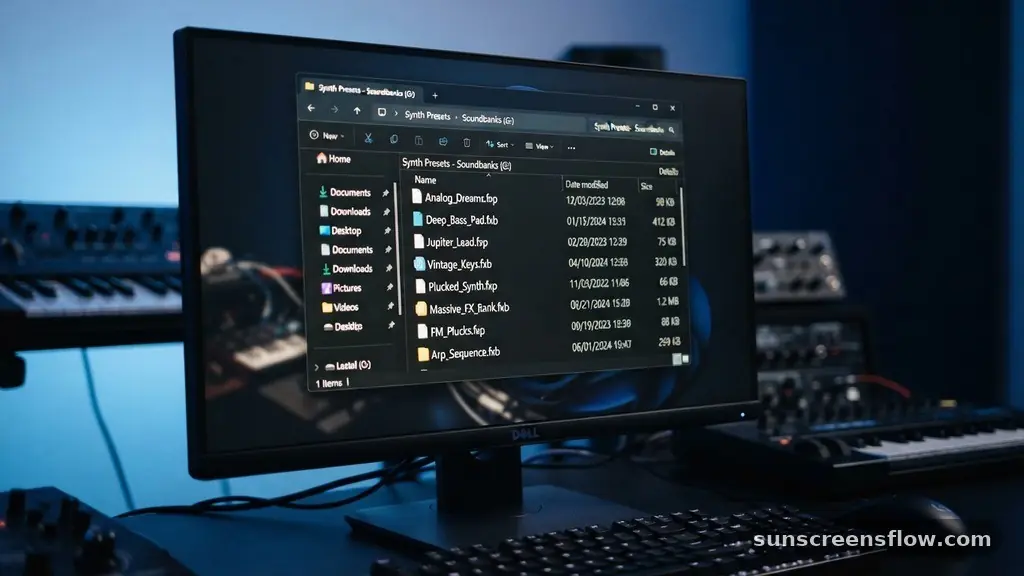
Before diving into the installation process, it is important to recognize the specific file formats that Serum utilizes. Most individual presets carry the .fxp extension, while entire banks of sounds are often bundled as .fxb files.
Understanding these extensions is the first step in effective preset management. When you download a new pack, the files are typically organized into folders that correspond to the category of the sound, such as bass, lead, pad, or pluck.
The software itself relies on a dedicated Serum presets folder located within your user directory. When you open the plugin, it scans this specific path to populate the browser window. If your files are placed outside of this designated directory, the plugin will not recognize them during its initialization sequence.
This is a common point of confusion for new users. By maintaining a clean, hierarchical folder structure within this directory, you ensure that your synthesizer workflow remains efficient. Think of this folder as the home base for all your sonic resources; keeping it tidy allows you to navigate thousands of sounds without feeling overwhelmed by clutter or disorganized file naming conventions.
Locating the Preset Folder on Windows and macOS
The physical location of your plugin directory depends entirely on your operating system. For users working on a Windows machine, you will generally find the path by opening Windows File Explorer and navigating to your Documents folder. The standard path is typically Documents > Xfer > Serum Presets.
This is where all user-created content and installed packs reside. It is a good practice to create a shortcut to this folder on your desktop if you find yourself frequently installing new content.
If you are a macOS user, the process involves using the macOS Finder. You will need to navigate to your user library, which is sometimes hidden by default. The path is typically /Library/Audio/Presets/Xfer Records/Serum Presets.
To access this easily, you can open Finder, click the “Go” menu at the top of the screen, and hold the “Option” key to reveal the “Library” folder. Once inside, you can drill down into the Xfer Records folder to find the exact destination. Understanding these paths is critical for troubleshooting; if you ever encounter issues where your sounds are not appearing, verifying the file path is the first diagnostic step to take.
Using the Built-in Import Feature
One of the most user-friendly aspects of Serum is the integrated import function, which allows you to bring files into the browser without leaving the plugin window. To utilize this, open the Serum interface within your DAW, such as Ableton Live, FL Studio, or Logic Pro.
Navigate to the “Menu” button located in the top right corner of the plugin. Within this dropdown menu, you will see an option labeled “Import Preset.”
When you select this, a file browser window will pop up, allowing you to navigate to the location where your downloaded .fxp or .fxb files are stored. Selecting the file will automatically copy it into the appropriate folder within your user library. This method is particularly useful because it handles the file movement for you, reducing the risk of accidentally placing files in the wrong directory.
It is the preferred method for beginners because it ensures that the plugin is aware of the new data immediately. Once the import is complete, you may need to perform a refresh library action or simply reopen the browser to see your new sounds listed in the menu.
Manual Drag and Drop Installation
For power users who manage large libraries of third-party soundbanks, the manual drag and drop method is often the fastest approach. This involves opening two windows side-by-side: your download folder containing the new presets and your Serum presets folder located in your documents or library directory. You can simply highlight the folders or individual files and drag them directly into the Serum directory.
This method is highly efficient when you are installing entire collections of patches at once. Because you are manually placing the files, you have full control over the organizational structure. For instance, you might want to create a subfolder named “My Favorites” or “Project X Sounds” to keep your most-used patches grouped together.
After dragging the files over, Serum will usually detect the new additions the next time you open the plugin. If the changes are not immediately visible, you can right-click anywhere in the preset browser and select “Rescan folders on disk.” This forces the plugin to re-index the directory, ensuring that every newly added sound is correctly mapped and ready for use in your music production.
Troubleshooting Missing Presets

It is not uncommon for users to find that their newly installed presets are not showing up in the browser. This usually stems from a mismatch in the directory path or a simple failure to perform a plugin scan.
First, verify that the files are actually in the location that Serum is looking at. If you accidentally placed them in a different folder, they will remain invisible to the engine.
Another common issue involves the file extension. Ensure that the files you are trying to load are indeed .fxp or .fxb files. If you have downloaded a compressed file, such as a .zip or .rar, you must extract the contents first.
Serum cannot read compressed archives. Furthermore, if you are using multiple versions of the plugin, such as a VST and an AU version, ensure that you are checking the browser in the version you are currently using.
If the problem persists, try restarting your DAW entirely. Sometimes the plugin cache needs to be cleared or refreshed, and a complete restart is the most reliable way to ensure that the software re-scans the entire directory path from scratch.
Optimizing Your Preset Management Workflow
Effective preset management is a hallmark of a professional producer. As your library grows, the sheer number of patches can become a hindrance to creativity.
To maintain a high-functioning synthesizer workflow, consider adopting a consistent naming convention for your custom patches. Using prefixes like “BAS_” for bass, “LD_” for leads, or “PAD_” for pads can make it significantly easier to find sounds when sorting by name.
Additionally, utilize the “User” folder within the Serum preset browser to separate your own creations from the factory presets. This keeps your original work safe and prevents it from getting lost among thousands of third-party sounds. You should also regularly back up your preset folder to an external drive or cloud storage.
Losing your custom patches due to a computer failure or a corrupted drive can be a significant setback. By treating your sound library as a valuable digital asset, you ensure that your unique sonic signature remains intact and accessible for years to come.
| Task | Method | Best For |
|---|---|---|
| Importing Individual Patches | Menu > Import Preset | Single file management |
| Installing Large Packs | Manual Drag and Drop | Bulk organization |
| Updating Browser View | Rescan folders on disk | Fixing visibility issues |
| Library Cleanup | Manual File Explorer | Organizing folder structures |
Integrating Serum FX into Your Workflow
While most users focus on the main synthesizer, it is important to remember that Serum FX is a powerful standalone version of the effects rack found within the main plugin. If you have installed presets that utilize the effects chain, you may want to ensure that these are also properly managed. The installation process for presets within the effects unit is identical to the main instrument; they share the same directory structure.
Using the effects rack on external audio sources—such as vocals, drums, or guitars—is a fantastic way to expand your sound design capabilities. When you install high-quality effects presets, you can quickly apply complex processing chains to your tracks with a single click. Make sure that when you are downloading packs, you check whether they include separate FX presets.
If they do, be sure to place them in the correct subfolder within the Xfer directory. Keeping your instrument presets and your FX presets organized will allow you to quickly pull up a full signal chain, significantly speeding up your mixing and production process.
Managing Presets Across Multiple DAWs
Many producers work across different platforms, such as switching between Ableton Live and FL Studio. Because Serum stores its presets in a central location on your hard drive, you do not need to install the presets separately for each DAW.
The plugin points to the same directory regardless of which host application is running. This is a massive convenience, as it means any preset you save or install will be instantly available in every project you open.
However, if you are moving between a Windows machine and a Mac, you will need to manually transfer your files. The file formats remain compatible across both platforms, so you can simply copy your entire Serum folder to an external drive and move it to the new system.
Once on the new machine, place the files in the appropriate plugin directory for that specific OS. This cross-platform compatibility is a major advantage of the Xfer Records ecosystem, ensuring that your creative assets can travel with you, no matter what hardware or software environment you choose to work in.
Advanced Tips for Professional Sound Designers
For those who are serious about sound design, the ability to categorize your library is essential. You can create custom folders and subfolders within the main Serum directory to reflect your personal project needs. For instance, creating folders based on specific genres or project names can drastically reduce the time spent searching for the perfect sound.
Furthermore, you should familiarize yourself with the “Star” rating system within the plugin. By clicking the star icon next to a preset, you can mark it as a favorite. This allows you to filter your browser to show only your most-used patches, which is a lifesaver during high-pressure studio sessions.
When you combine this with a well-organized folder structure, you create a highly responsive environment that supports your creative flow rather than interrupting it. Remember that the goal is to reduce technical friction; the more time you spend managing your files efficiently, the less time you spend waiting for your software to catch up with your ideas.
Frequently Asked Questions
Where is the Serum Presets folder located on my computer?
The folder is typically found in your Documents folder under Xfer > Serum Presets on Windows. On macOS, it is usually located in your user Library at /Library/Audio/Presets/Xfer Records/Serum Presets. If you cannot find it, use the search function in your file manager.
Why aren’t my new Serum presets showing up in the browser?
This usually happens because the files were placed in the wrong folder or the plugin has not re-scanned the directory. Right-click in the preset browser and select “Rescan folders on disk.” Also, ensure the files are unzipped and have the .fxp or .fxb extension.
Can I use the same presets in both Ableton Live and FL Studio?
Yes. Serum uses a central directory on your computer for all its presets. Once you install a preset into the main Xfer Records folder, it will be automatically accessible in every DAW that has the Serum plugin loaded, regardless of which host you are using.
Do I need to restart my DAW after installing new presets?
In most cases, you do not need to restart your DAW. Simply right-clicking in the preset menu and selecting the “Rescan folders on disk” option is sufficient to make the new files appear. If they still do not show, a quick restart of the DAW usually resolves it.
Conclusion
Learning how to install Serum presets is a foundational skill that transforms your experience with this industry-standard wavetable synthesizer. By understanding the importance of the Serum presets folder, mastering the import presets function, and maintaining a clean plugin directory, you create a seamless environment that prioritizes your creative output. Whether you are adding third-party soundbanks to your collection or organizing your own custom creations, the techniques discussed here ensure that your library remains a powerful, accessible asset.
Remember that effective preset management is not just about moving files; it is about building a workflow that allows you to focus on the art of sound design without getting bogged down by technical hurdles. As you continue to refine your synthesizer workflow and explore new sonic territories, keep your files organized, perform regular backups, and always utilize the rescan features to keep your browser up to date. With these practices in place, you are well-equipped to make the most of your production sessions in any DAW.